1 How to Login
- Find your URL: Open your web browser and enter the SmartPlus server URL provided in your "Welcome Email" (e.g., https://smartplus.akuvox.com).
- Credentials: Enter the Username and Password sent to you by your installer.
- 2FA (Security): If Two-Factor Authentication is on, check your email for a verification code and enter it when prompted.
2 Managing Tenants (The Basics)
Adding a New Tenant
- Go to Resident > New.
- Fill in Details: Enter the building, apartment number, and the tenant's name/email/mobile.
- Primary Account: Always create the "Family Master" first.
- Lease Dates (Optional): Turn on "Set Valid Time" if they have a move-out date.
- Click Submit. The tenant will get an email with their login info.
Pro-Tip: Enable "Auto-Delete Family Accounts on Expiry" so the system automatically removes their access when they move out.
Removing a Tenant
- Go to Resident.
- Use the search bar to find the tenant by name or apartment.
- Click the Bin/Delete icon next to their name.
Note: If you don't see the delete button, ask your installer to grant you "Delete Account Permission."
3 Checking the Logs (Who was here?)
The logs provide proof of entry and security records.
- Go to Logs on the left menu.
- Door Logs: See exactly who used a card, PIN, or Face ID to open the door. Most logs include a captured image of the person.
- Call History: See which residents answered (or missed) calls from the front gate.
- Motion Alerts: If your devices have motion detection on, check Alarm Records or Logs to see images of people loitering near the entrance.
4 Key Access Control Tasks
Assigning a PIN or RF Card
- Go to Resident and find the person.
- Click Edit.
- Scroll down to Access Methods:
- PIN: Type in a 2–8 digit code (don't start with '9').
- RF Card: Type in the physical card number printed on the fob/card.
- Click Submit.
Creating a One-Time Code (For Maintenance/Vendors)
- Go to Visitor & Staff > Temp PIN.
- Click New.
- Set the date and time the code should work (e.g., today from 9 AM to 1 PM).
- Save it and text the code to the vendor.
5 Easy Troubleshooting
- "The app isn't calling me": Check Resident > Edit. Ensure their "Call Type" is set to "SmartPlus and Indoor monitors."
- Device is "Offline": Go to Devices > Intercom Devices. If the status icon is grey/red, the device has lost internet. You can try clicking the Reboot button remotely.
- Residents can't see front door video: Go to Devices > Intercom Devices > Edit. Make sure "Allow users to monitor this device" is set to Yes.
Management Tip: You can send a broadcast message (e.g., "Elevator Maintenance tomorrow") to all residents via the Messages tab. This will pop up on their indoor monitors and mobile apps.
Need more detail? The full guide covers every feature in depth.
View Full Property Manager Guide (PDF)1 Download & Prepare
- Download: Search for "Akuvox SmartPlus" on the Apple App Store or Google Play Store.
- Requirements: You must have an account already created by your Property Manager or Service Provider. They need your Email or Mobile Number to set this up.
2 How to Login
There are three ways to log in using your phone:
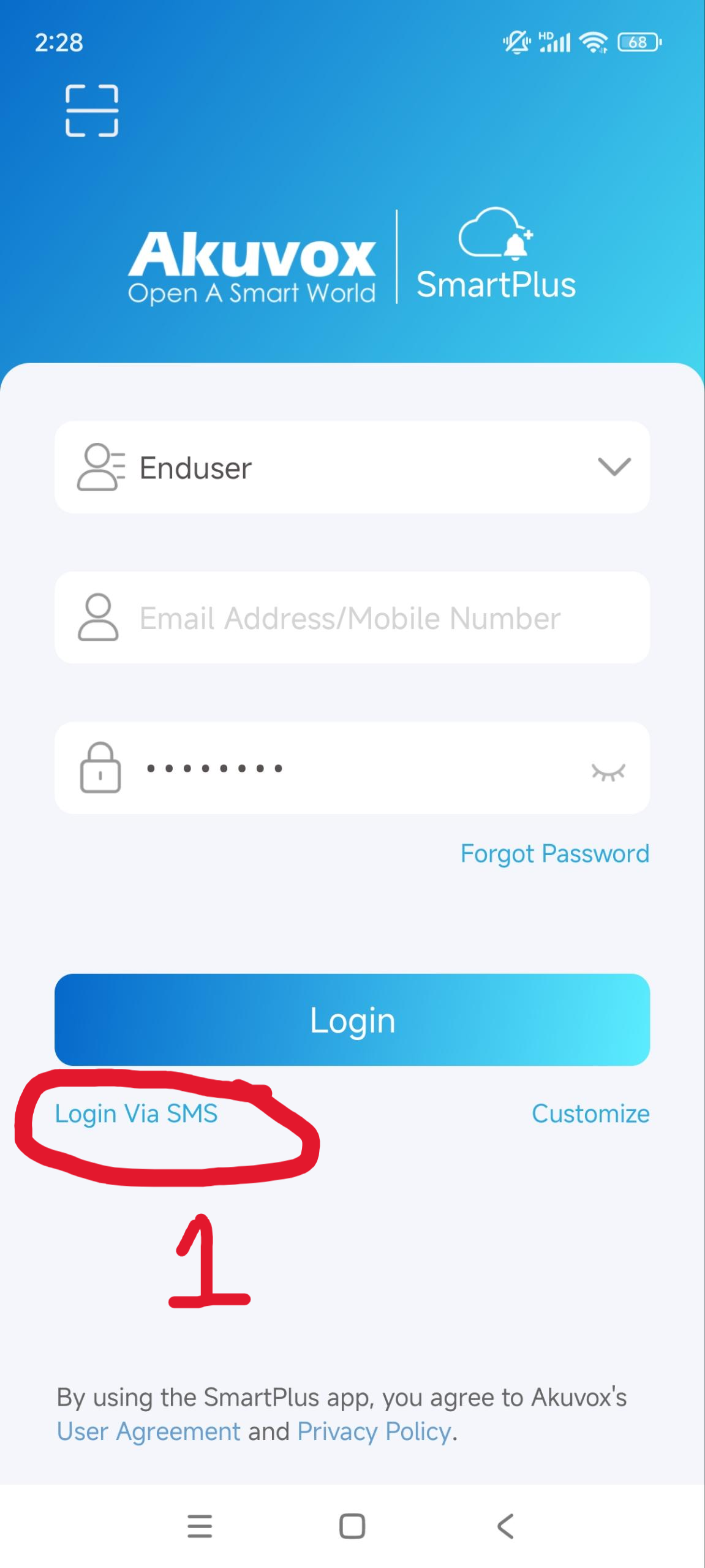
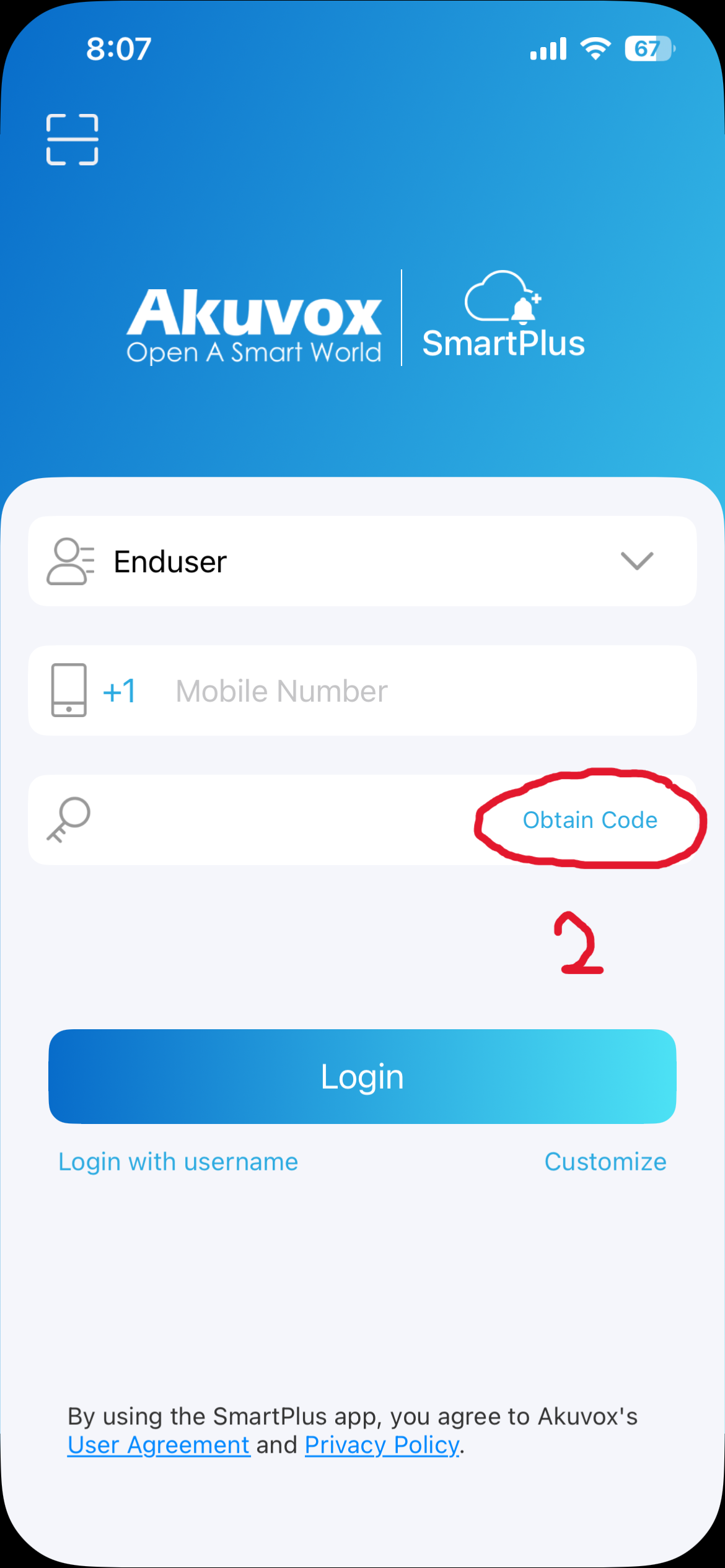
Option A — Mobile Number (SMS) — Fastest
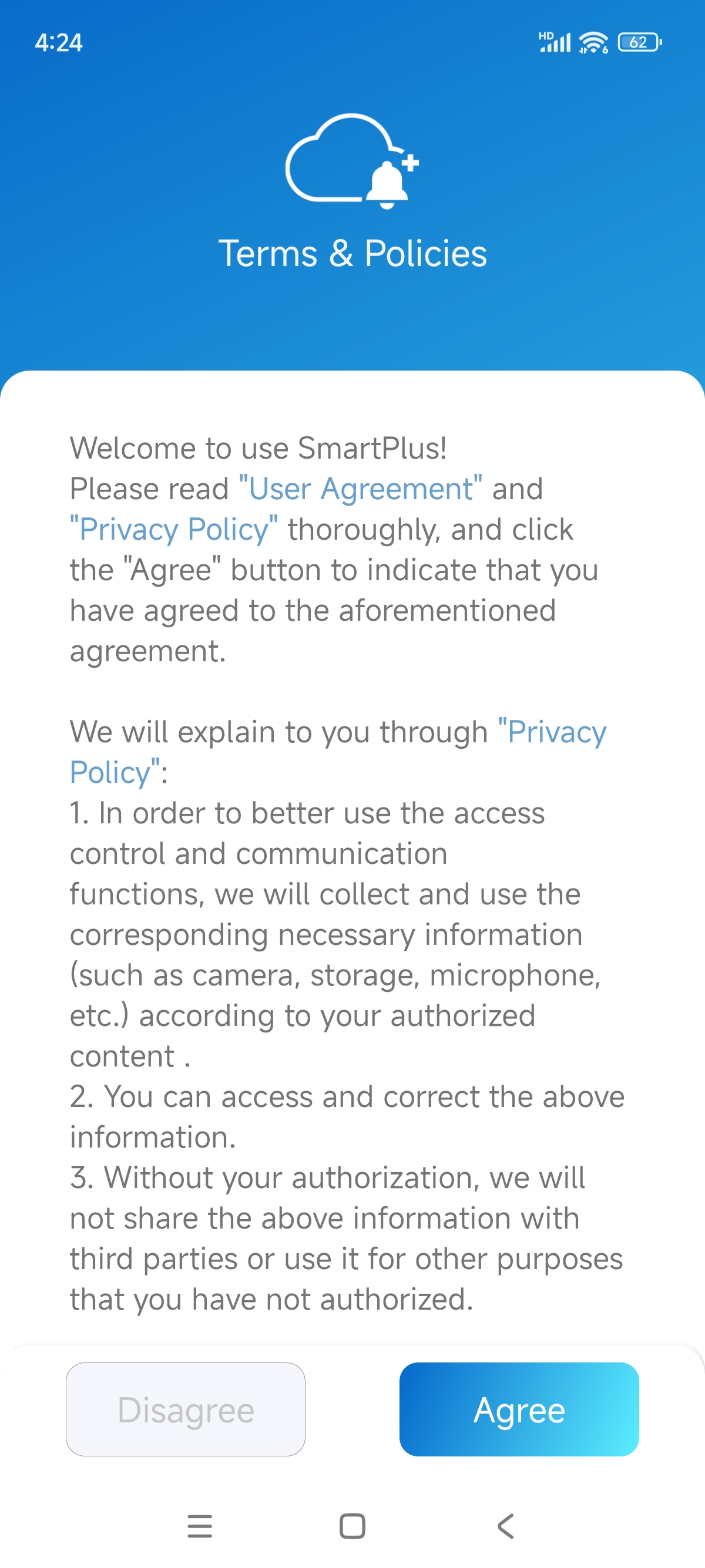
- Open the app and Agree to the Terms & Policies.
- Look for the option to Log in with a verification code (SMS).
- Enter your Mobile Number.
- Tap Obtain Code.
- Enter the code sent to your phone via text message to log in instantly.
Option B — QR Code
- Check your email for a "Welcome" message from Akuvox.
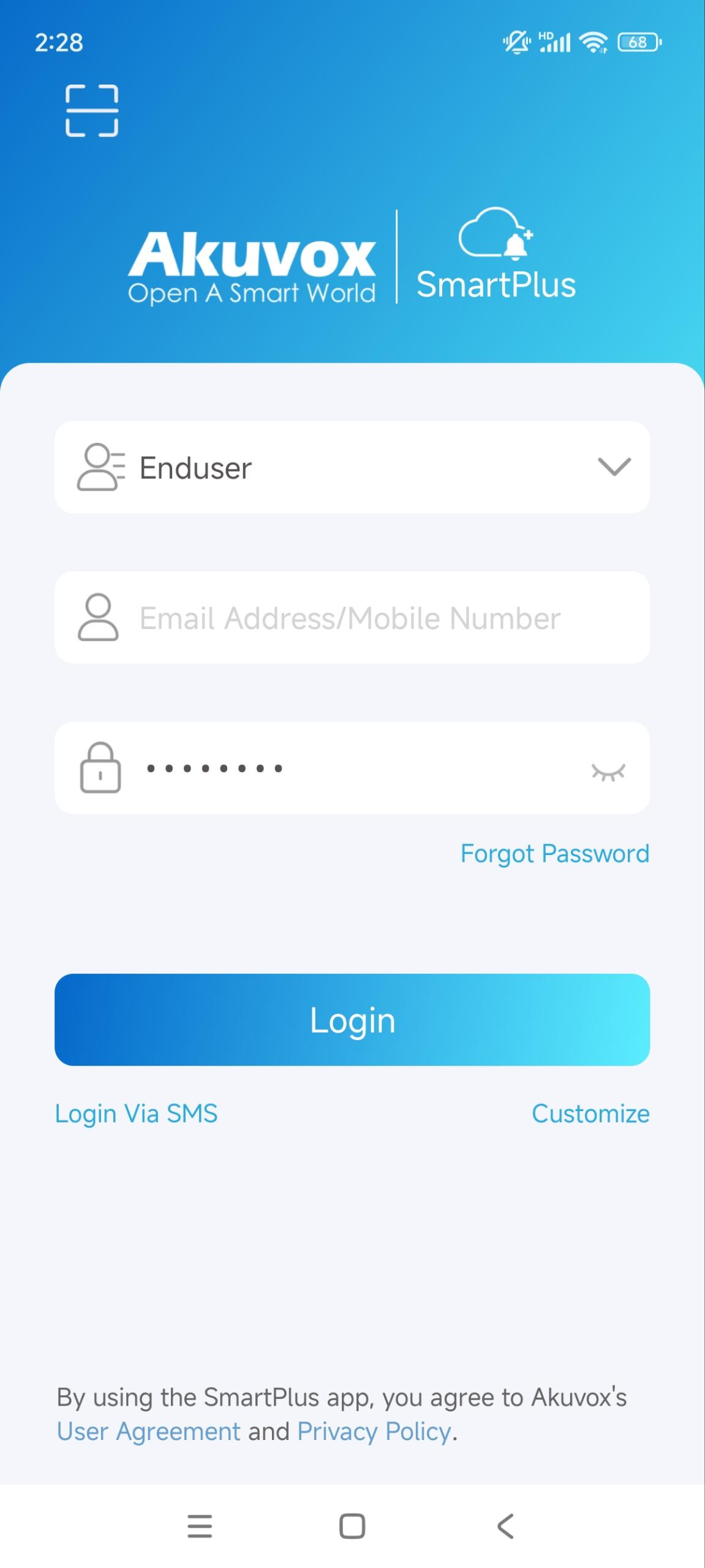
- Open the SmartPlus app and tap the QR Code icon on the login screen.
- Point your camera at the QR code in your welcome email. It will log you in automatically.
Option C — Username / Password
- Enter the username and password provided in your welcome email.
- Ensure the "Role" is set to Enduser.
3 Forgot Your Password? (SMS Reset)
You can reset it yourself without calling the manager:
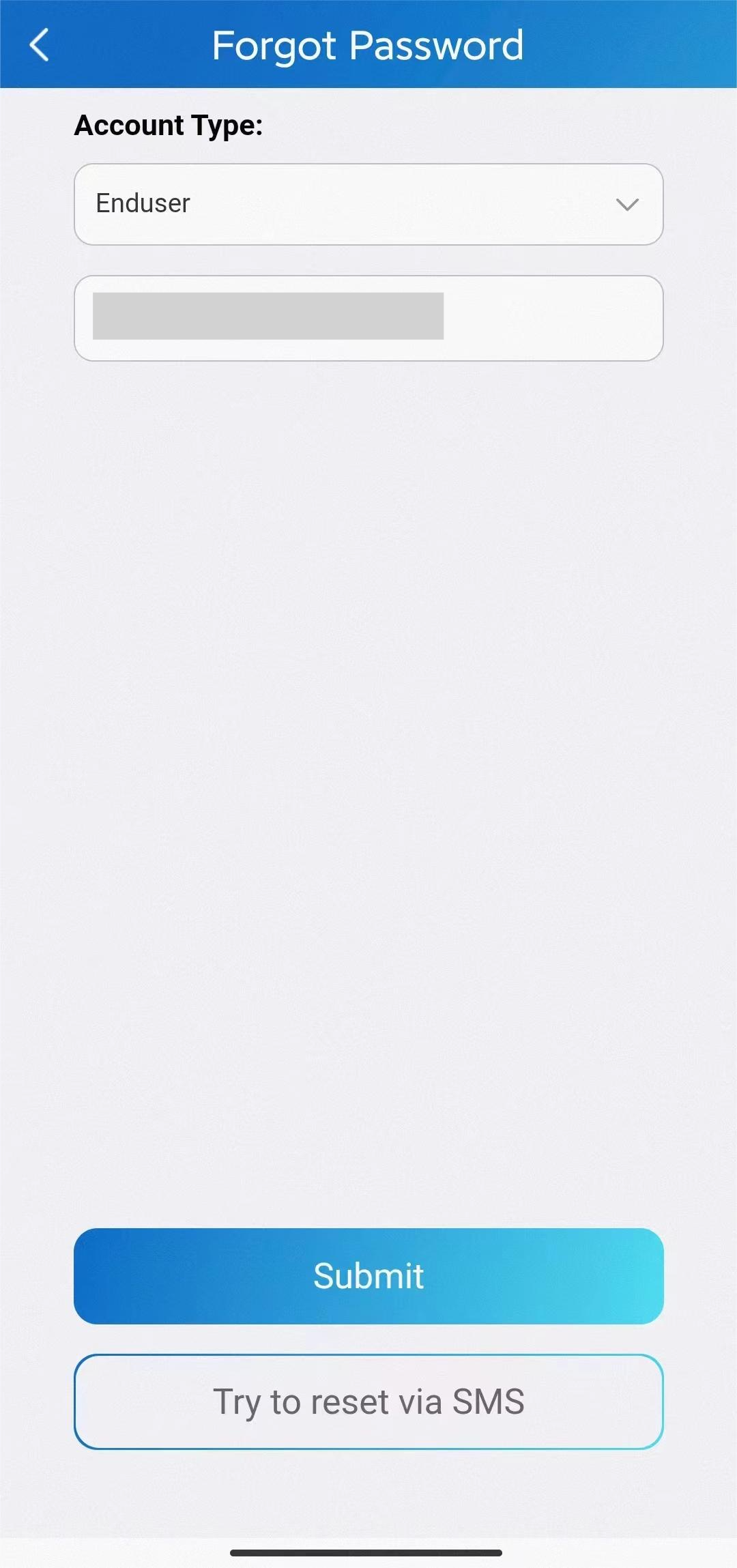
- Tap Forgot Password on the login screen.
- Select Try to reset via SMS.
- Select your Country Code and enter your mobile number.
- Tap Obtain Code, enter the SMS code you receive, and set a new password.
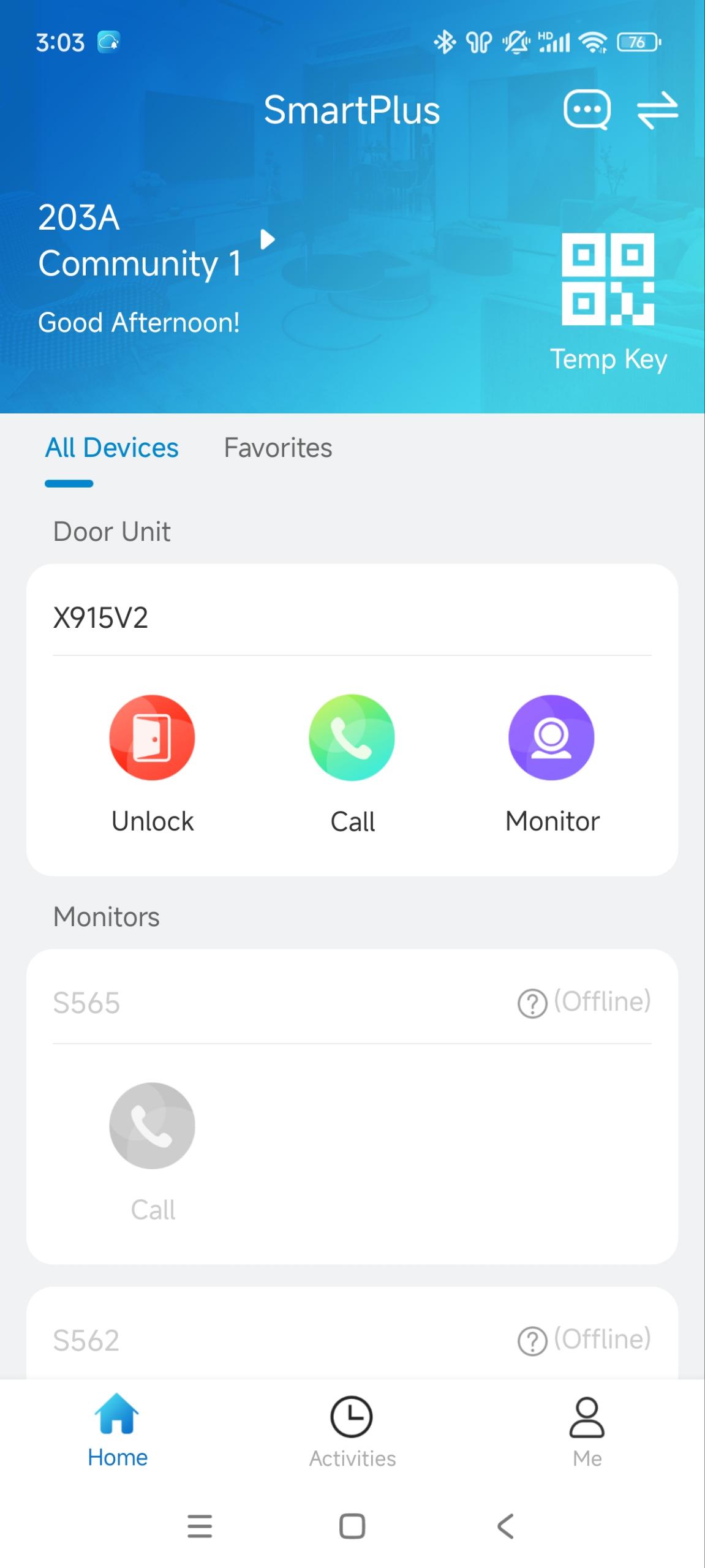
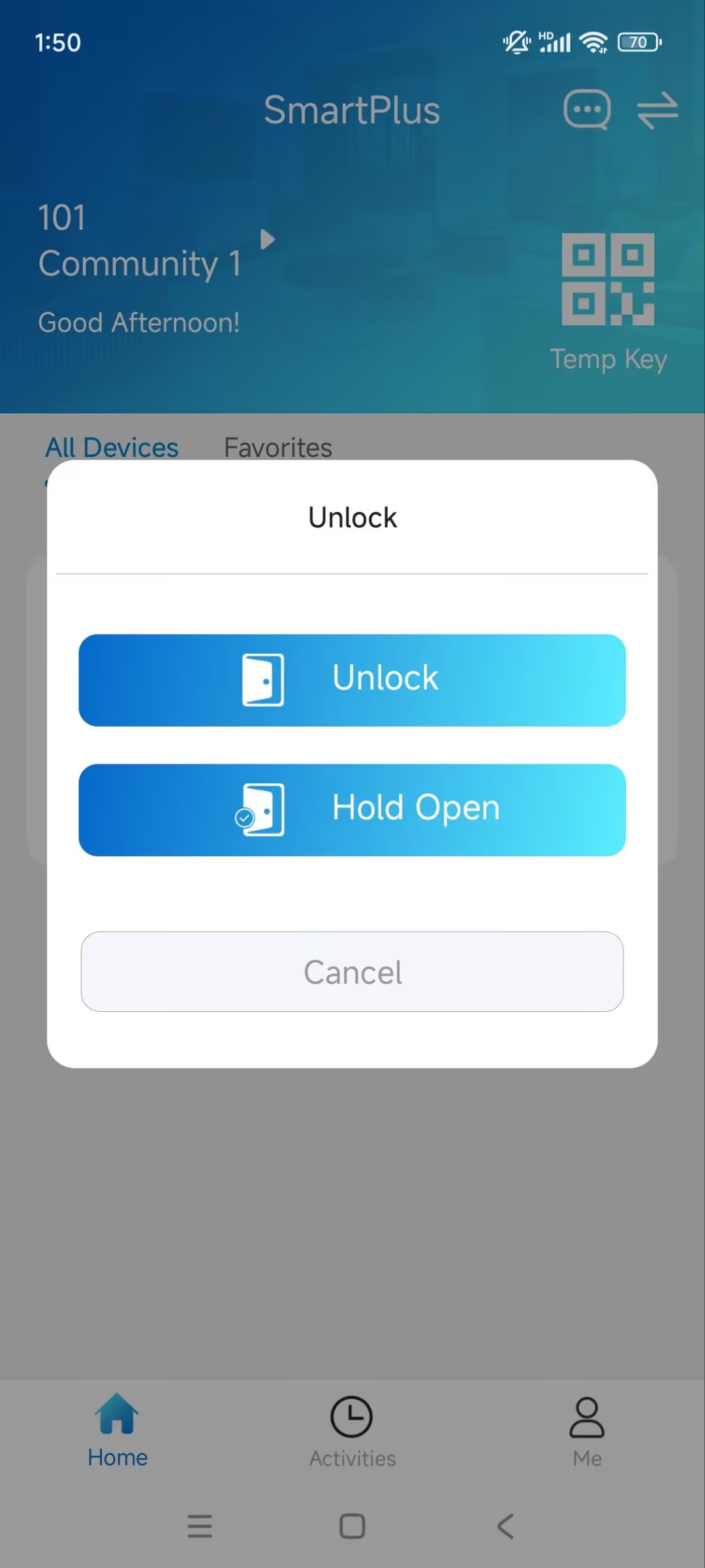
Pro-Tip for Daily Use: On the home screen, just tap the Unlock (key icon) next to the door name to open it instantly — no call needed.
Need more detail? The full guide covers every feature in depth.
View Full SmartPlus App Guide (PDF)